


You probably noticed a rather big change to your Office dashboard recently. This is part of a new push by Microsoft to put CoPilot (their AI tool) at the center of the Office Experience.
While this change was a bit jarring, there is a lot of good stuff here. Read below to learn about the changes and how to set yourself up for success.
Default to Chat
This new arrangement now defaults to a CoPilot chat instead of a search of your Office files. This means that if you enter a query, you’ll get a search but results will be wrapped around with summary and explanation created by AI analysis. The AI is also trying to judge relevance, analyzing things like attachments related to calendar entries and most recently accessed. In the picture below, you’ll see that the results show a summary and explanation at the bottom of each query result.

You can also ask the chat to create things for you such as PowerPoints from an outline or general information you want it to use. CoPilot will then generate a file you can download and edit. All of your chats are accessible through a dropdown on the lefthand column.

If you want to get a traditional, indexed search, click on the search button in the upper left corner of the page (this will change the screen to a traditional) This will bring up an indexed search with options to filter by different file types.

Pin Your Apps
This update removed the grid button (for quick access to apps) along with the stack of apps down the left column but replaced it with two different options for accessing your favorite apps.
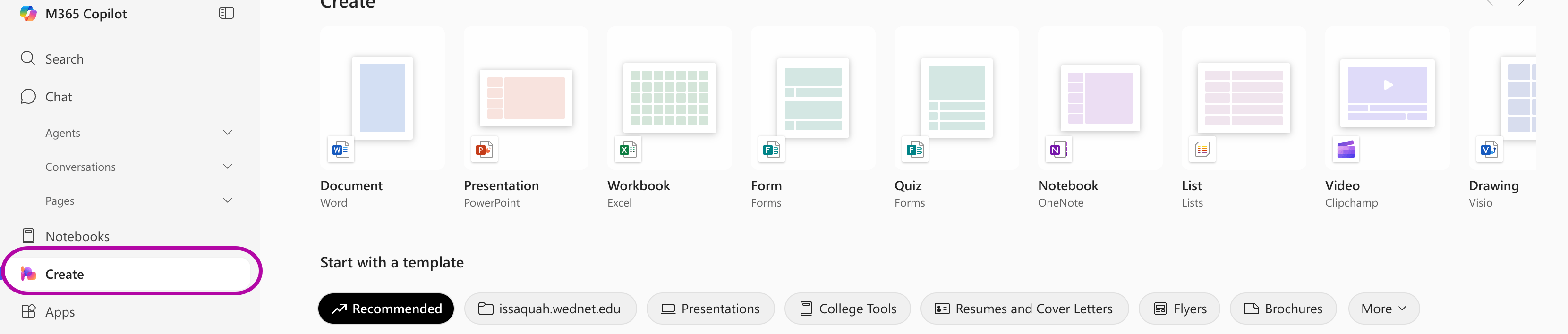
The first way to jump into Word or PowerPoint is to click on the Create button that is located about halfway down the lefthand column. This create button will take you to a different dashboard where can easily click on a button to create a new file in Word, PowerPoint, Excel, etc.
You can also pin apps to your sidebar for quick access, and this is in improvement, as now you can control what shows up there.
To do so, click on the Apps button which will open another dashboard with tiles for each app. If you hover over a tile (say for example the Word tile) three dots will appear. Clicking on them opens a small context menu with an option to open and an option to pin the app.
Choosing this option will place a shortcut link in the sidebar, and now you always have access to that app from the dashboard. You can control the order by clicking and holding on an app shortcut and dragging it up and down.

